Voice Recognition Sensor
Voice Recognition Sensor Firmware Upgrade
Preparation
Software:
Download the CH340 driver: 1. Windows:https://www.wch.cn/download/CH341SER_EXE.html/ 2. Linux:https://www.wch.cn/download/CH341SER_LINUX_ZIP.html/ 3. Android:https://www.wch.cn/download/CH341SER_ANDROID_ZIP.html/ 4. MAC:https://www.wch.cn/downloads/CH34XSER_MAC_ZIP.html/
b. Firmware Upgrade Platform:https://update.icrobot.cn
Hardware:
|
|
|
|
|---|---|---|---|
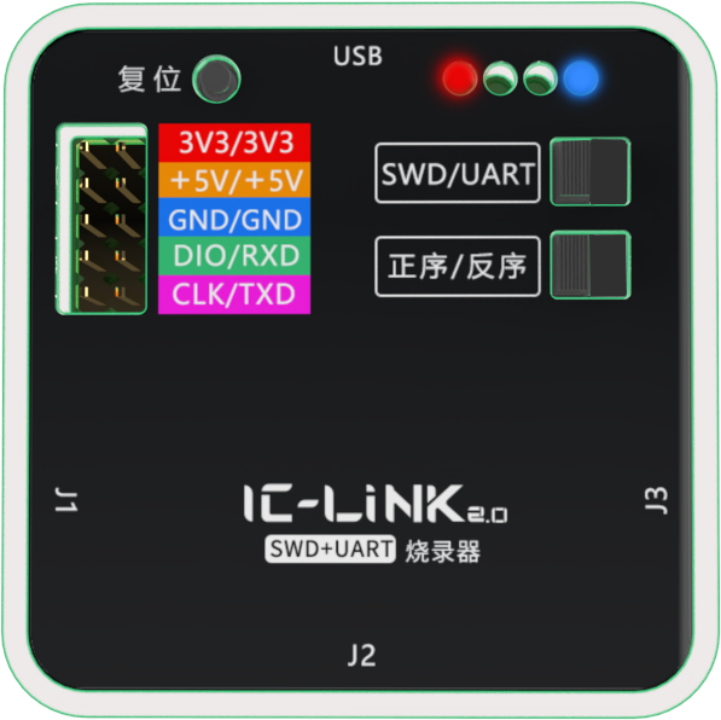
ICLink 2.0 Upgrade Tool x1 |
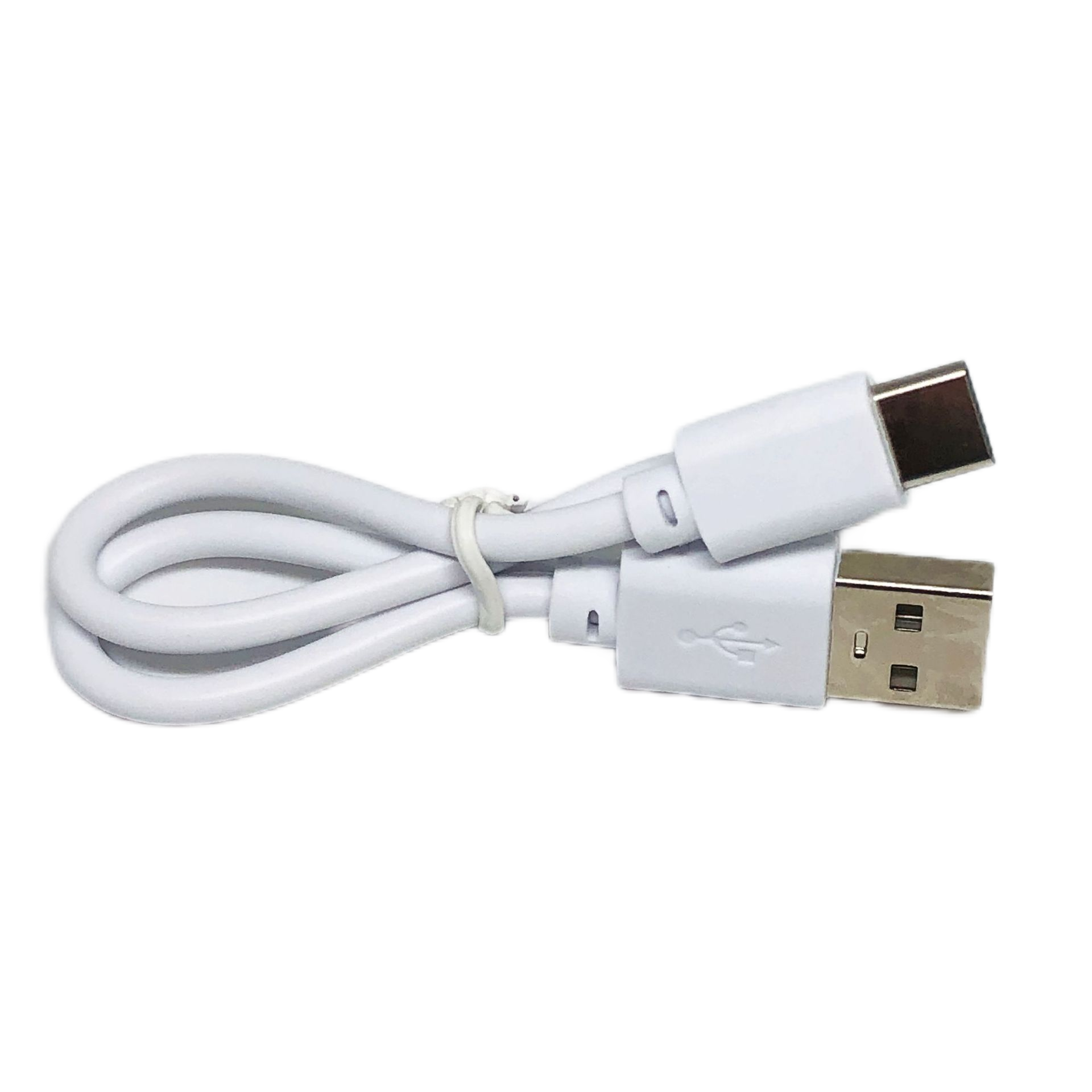
USB-C Data Cables x2 |
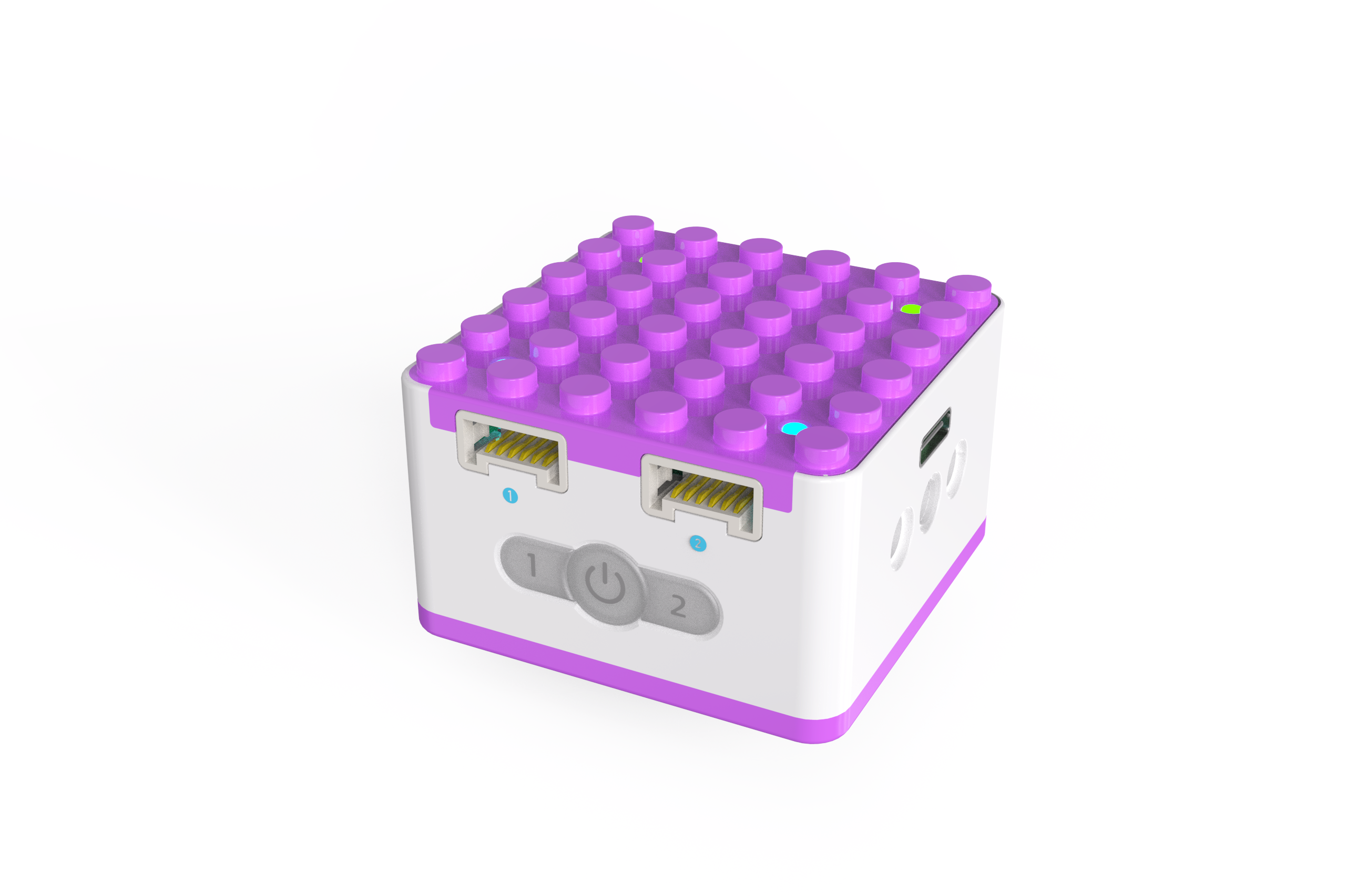
ICQbot Xiao Q Robot ×1 |
Android Tablet ×1 / iOS Tablet ×1 |
Steps:
|
|
|---|---|
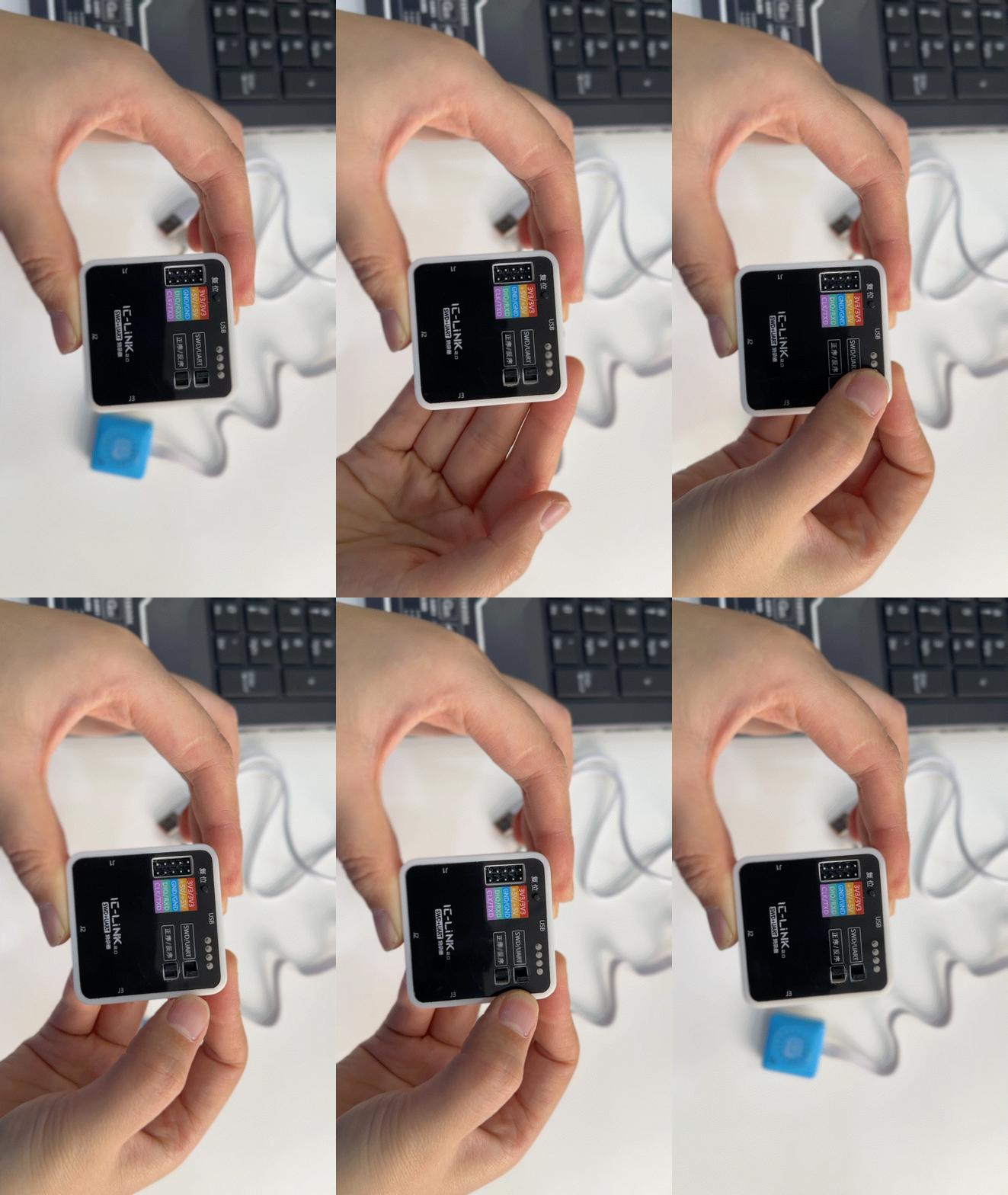
①Confirm ICLink 2.0 Switch: Set to UART / No distinction between forward and reverse sequence. |
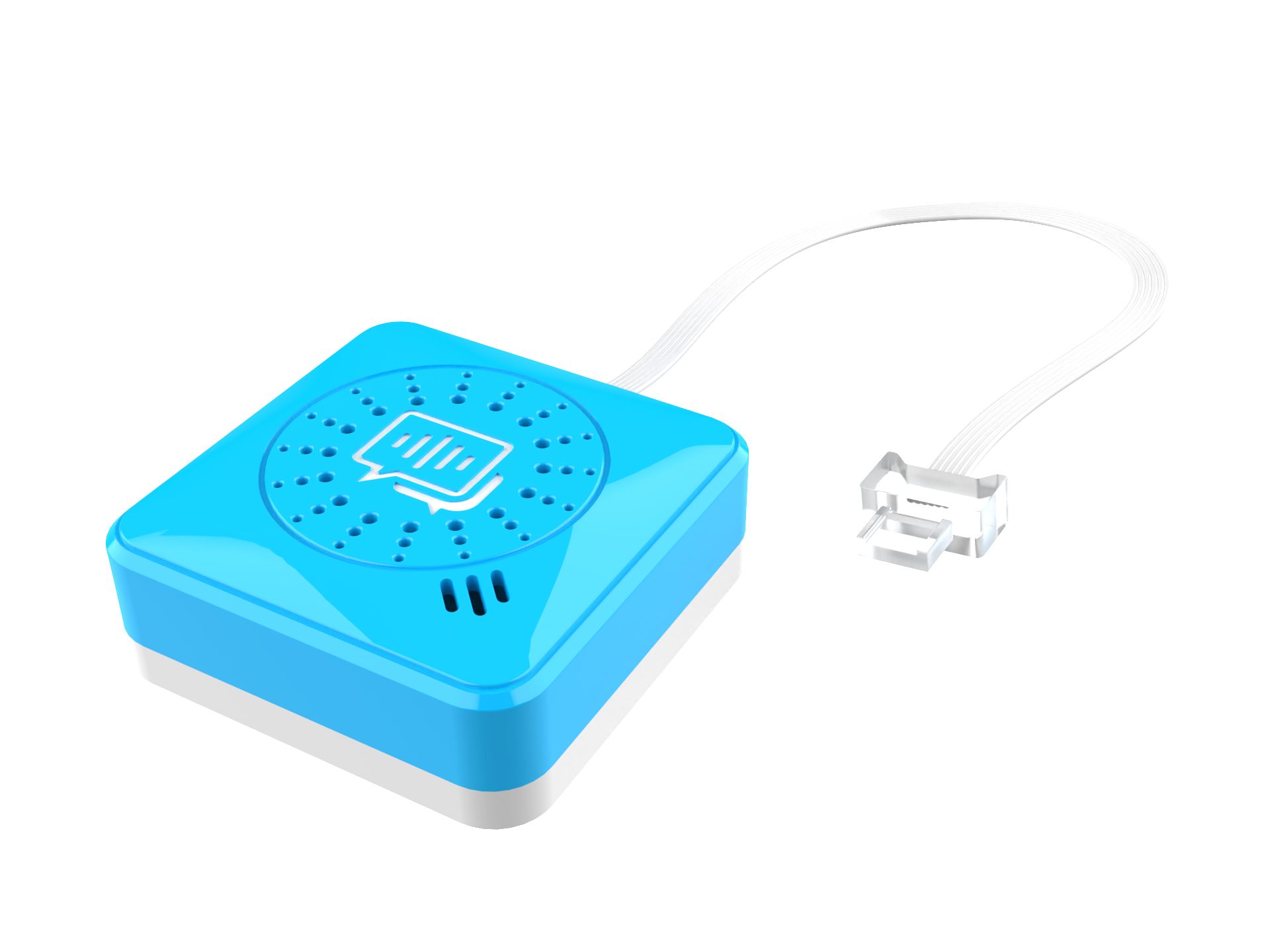
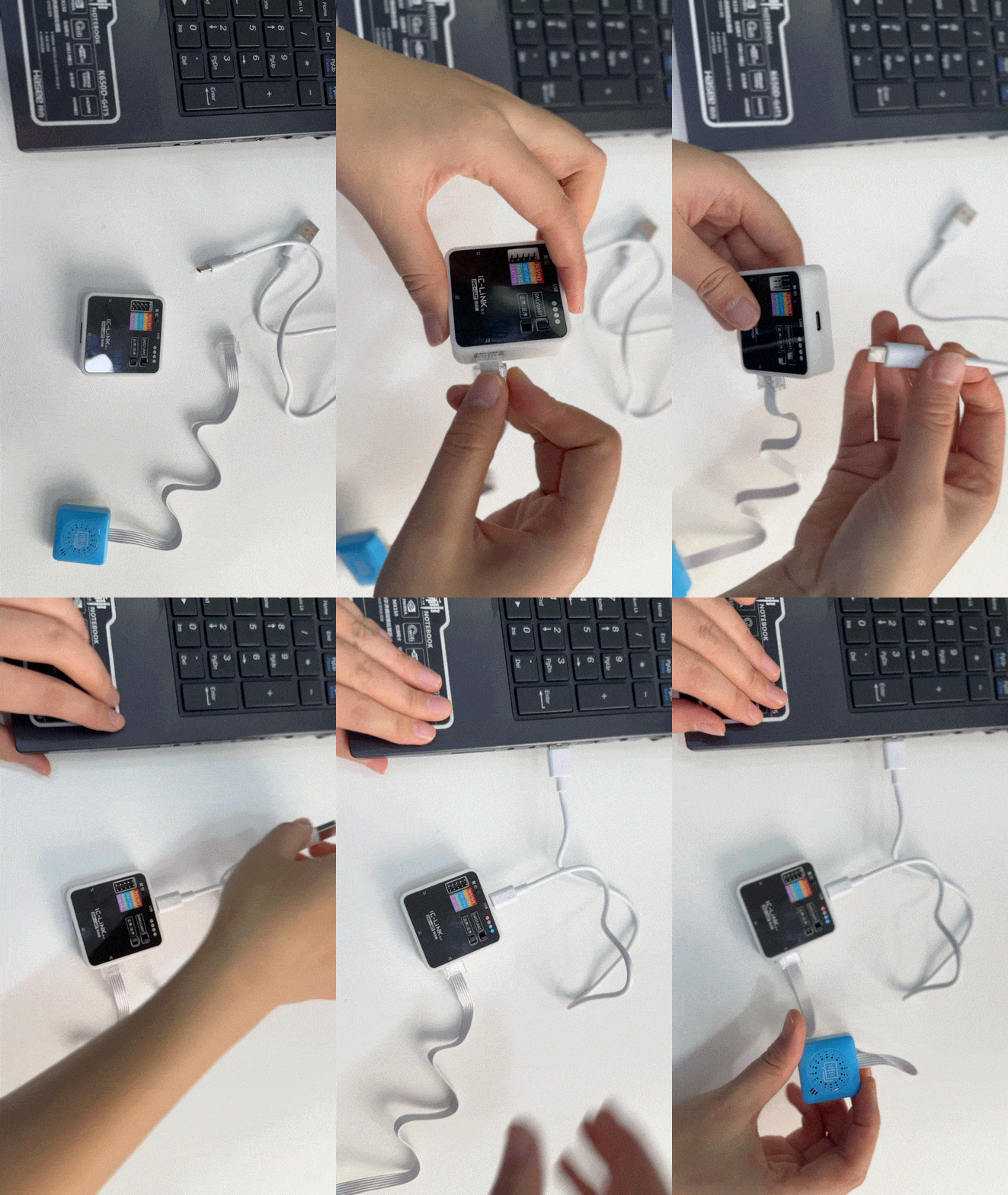
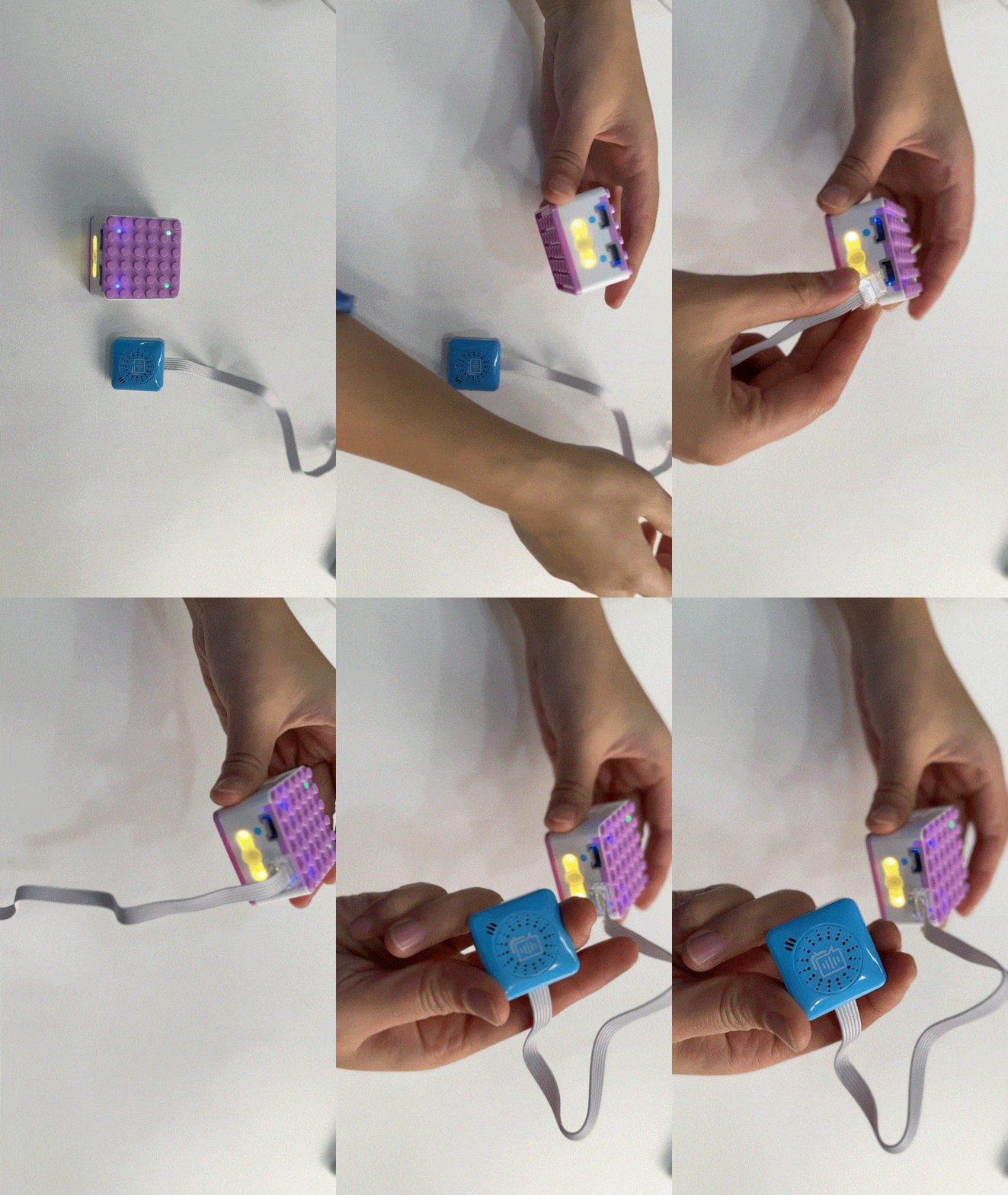
②Use data cables to connect your computer, the voice recognition sensor, and ICLink 2.0. Once connected, the voice sensor will say: “I am Xiao Q, happy to serve you,” indicating a successful connection. |
|
|
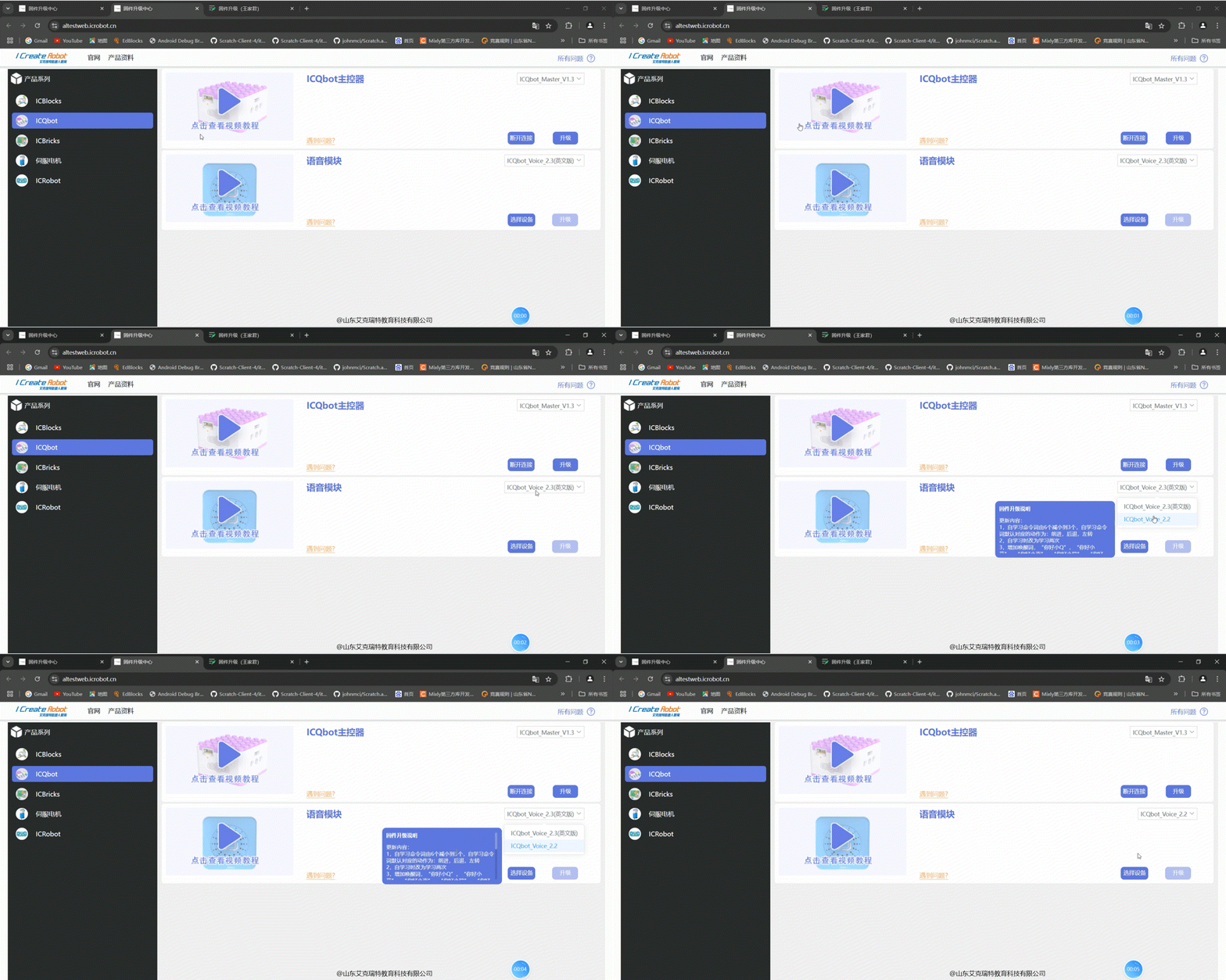
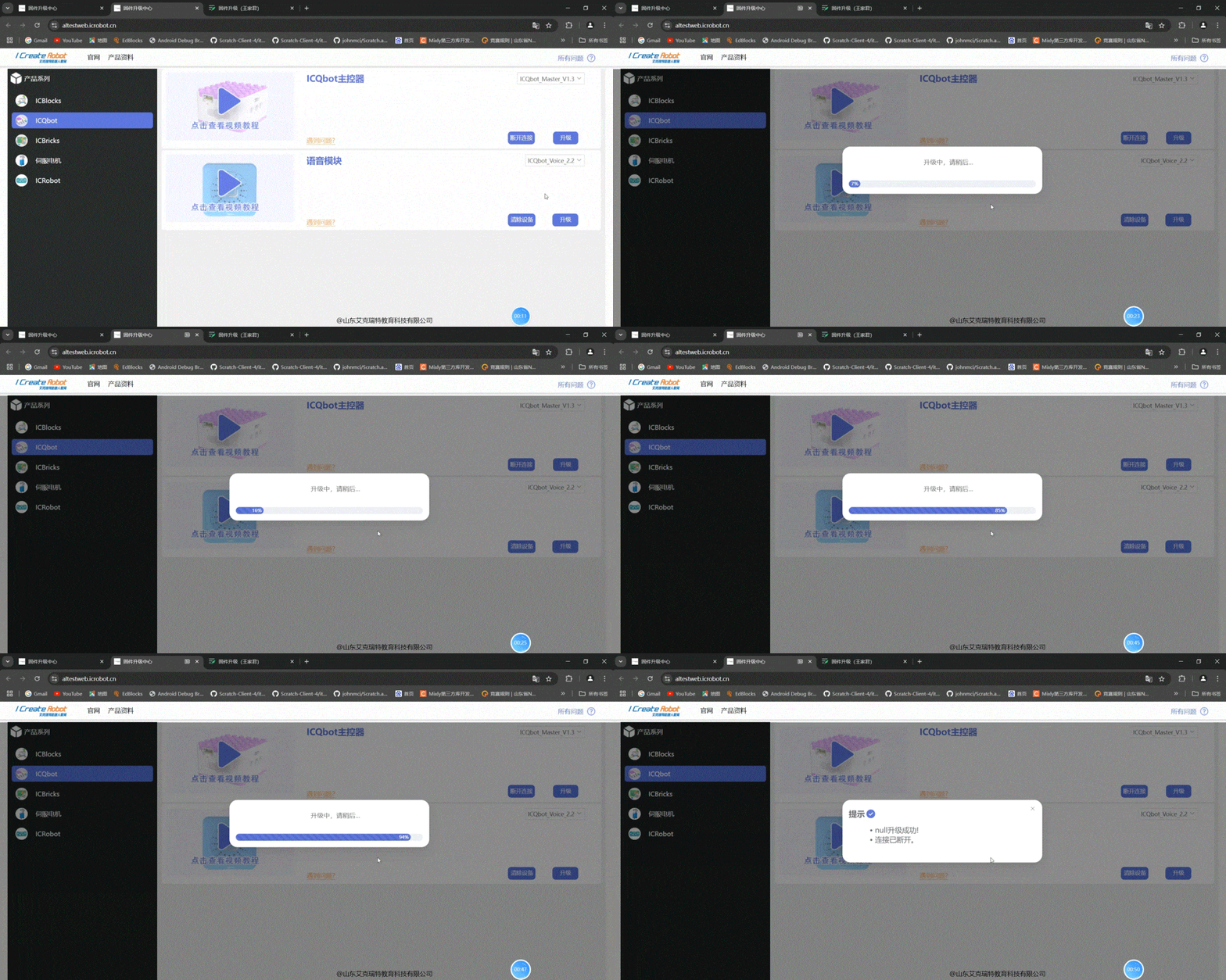
③Click on ICQbot and select the firmware to upgrade. Use the dropdown menu to view firmware details. |
④Click “Connect Device,” then choose the corresponding COM port in the pop-up serial connection window(③) |
|
|
⑤After connecting successfully, click the “Upgrade” button to start the process. Once the progress bar is complete, a prompt will indicate the upgrade is finished. |
⑥Connect the voice sensor to the Xiao Q Robot and test using voice commands like “Hello Xiao Q” or “Voice Version.” If Xiao Q responds, “The current module voice version is V*.*,” and it matches the upgraded version, the process is complete. |
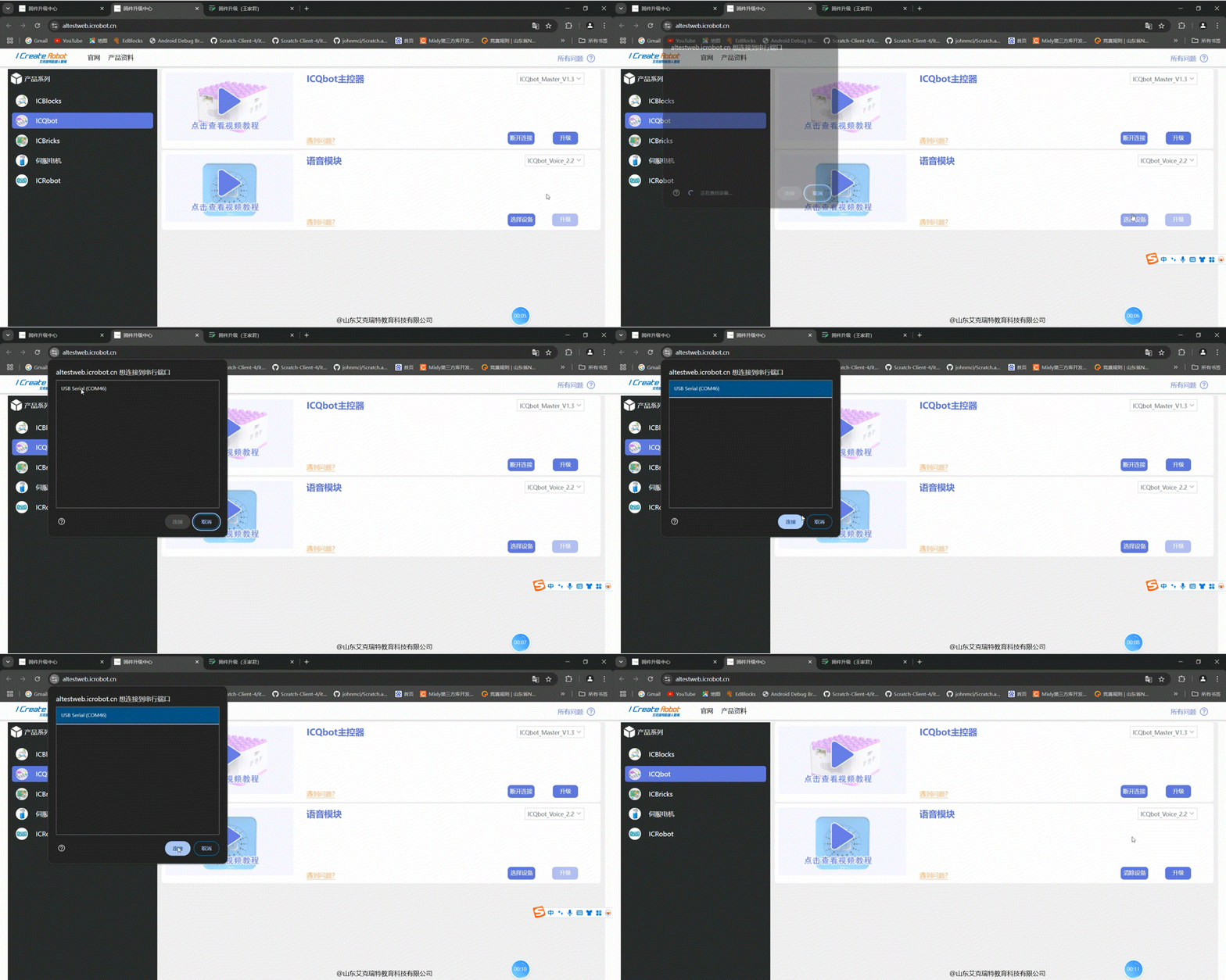
*③:If no COM port appears or the connection fails, try reinserting the data cable.